Connecting AI Tools
You can connect Book Report to AI tools, including Claude and ChatGPT. Once connected, your AI tools will be able to see your sales data and answer questions about it. You can think of it as letting the AI use your Book Report account for you - it can access whatever reports it needs in order to answer your questions.
For example, you can ask:
- "What changed this month compared with last month?"
- "How do my last three launches compare?"
- "Which penname should I focus my marketing attention on?"
The AI tool will then be able to pull whichever sales data it needs from Book Report in order to best answer your question. Once it has been set up, your AI tool will always have access to the latest data in Book Report - no need to copy paste spreadsheets around.
If you are on legacy pricing, your first successful AI tool connection will begin a 90-day free trial. Your legacy subscription keeps the features that existed before February 2025. AI tool connections are part of the new feature set, so keeping this feature after the trial will require moving to current pricing.
What AI Tools Can Access
When you approve a connection, you choose its access level:
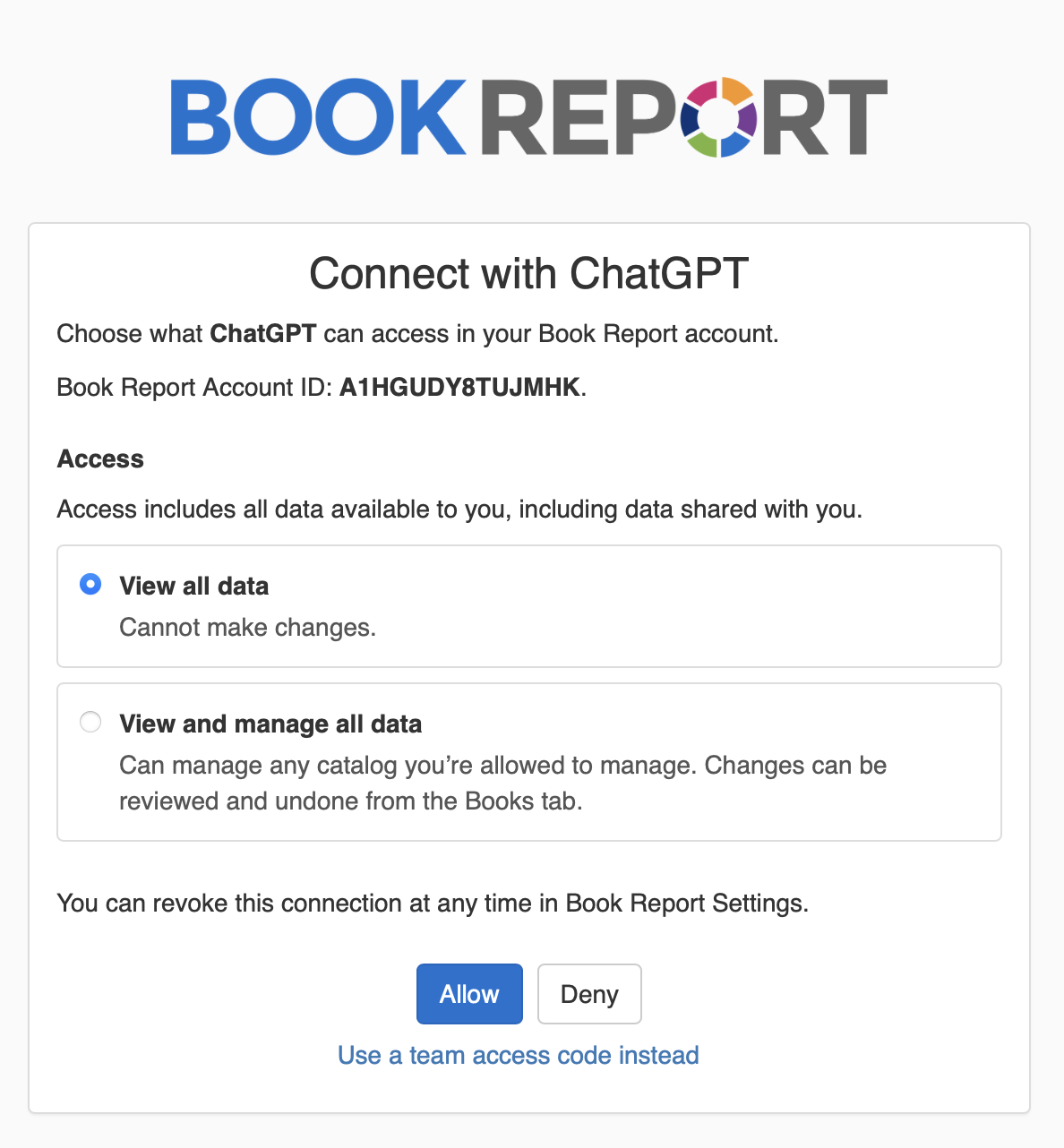
- View all data lets the AI tool read your sales history, report settings, and catalog details, but not make changes.
- View and manage all data also lets the AI tool manage how Book Report understands your catalog and other catalogs you're allowed to manage. Catalog changes can be reviewed and undone from the Books tab.
View access includes all data available to you, including data shared with you. Management access does not automatically let an AI tool change another Book Report user's catalog: it can manage only catalogs you own or have been given permission to manage.
Management access applies to catalog data and ad destinations. It cannot import data, change billing or account settings, manage connections or API keys, or change your Book Report subscription.
Only connect Book Report to an AI tool you trust with your sales history. Once an AI tool has read data from Book Report, Book Report cannot take that data back. You can revoke access at any time from the Settings tab, and that will prevent any further access, but it cannot take back data it has already shared.
ChatGPT
To connect your ChatGPT and Book Report accounts:
- Click here to view Book Report's official ChatGPT plugin, then click "Connect".
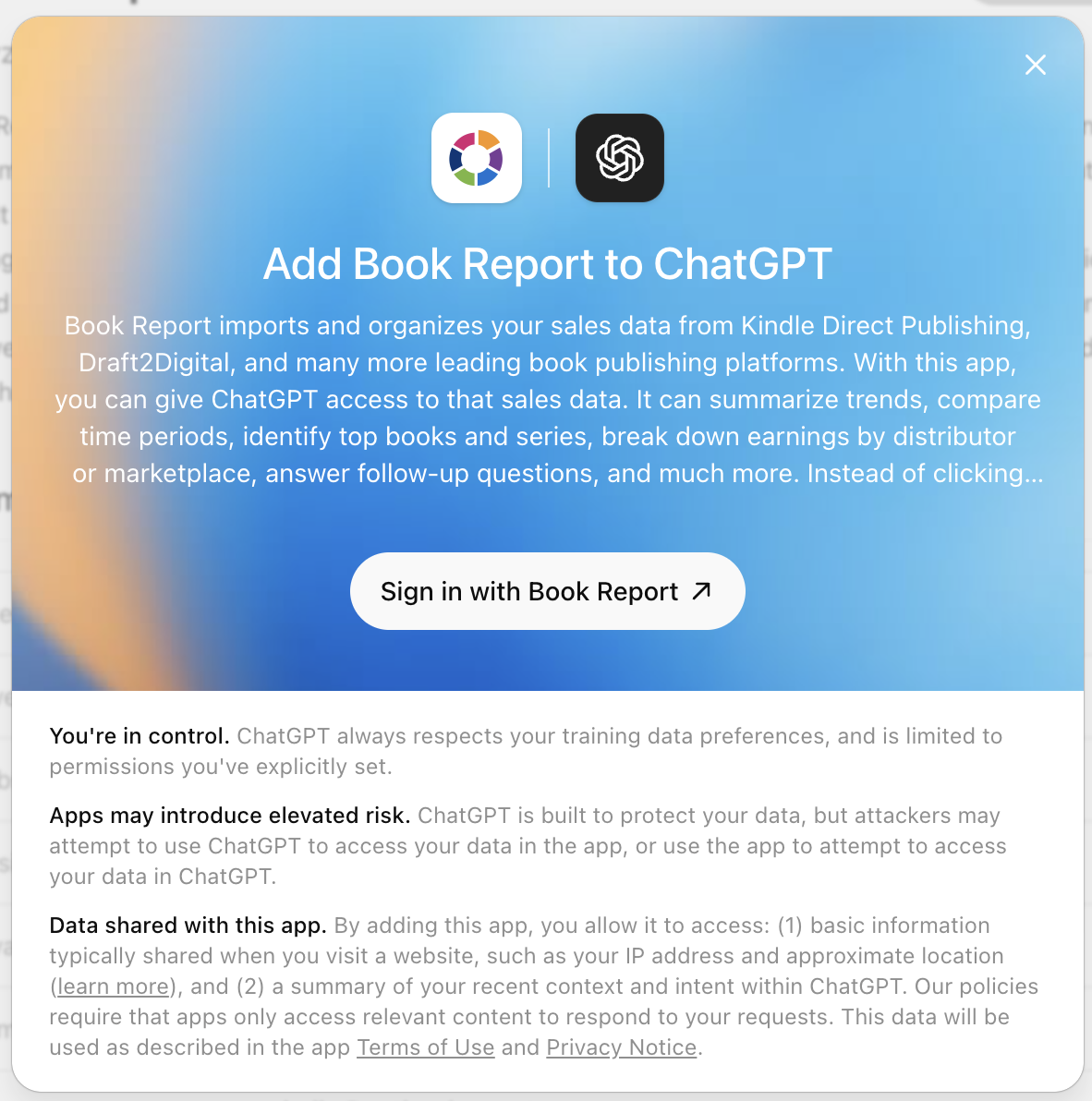
- Click "Sign in with Book Report":
- Choose an access level, then click "Allow".
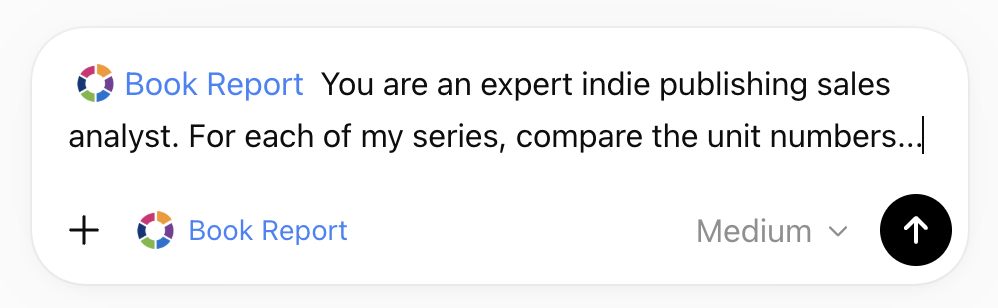
- That's it! Now you can ask ChatGPT about your sales data.
Claude
To connect your Claude and Book Report accounts:
- Open Book Report in Claude's connector directory, then click Connect.
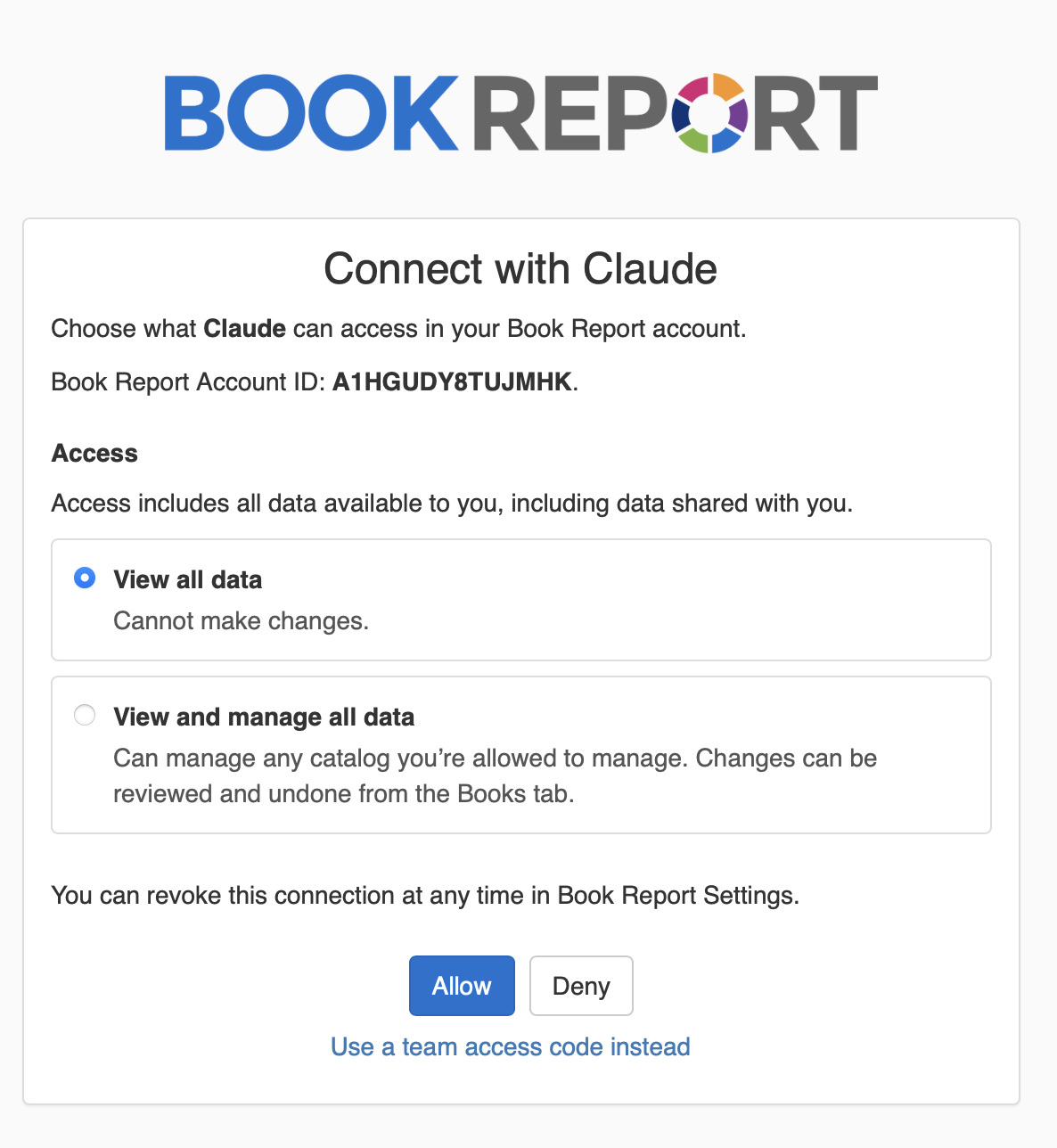
- Sign in to Book Report, choose an access level, then click Allow.
- That's it! Now you can ask Claude about your sales data.
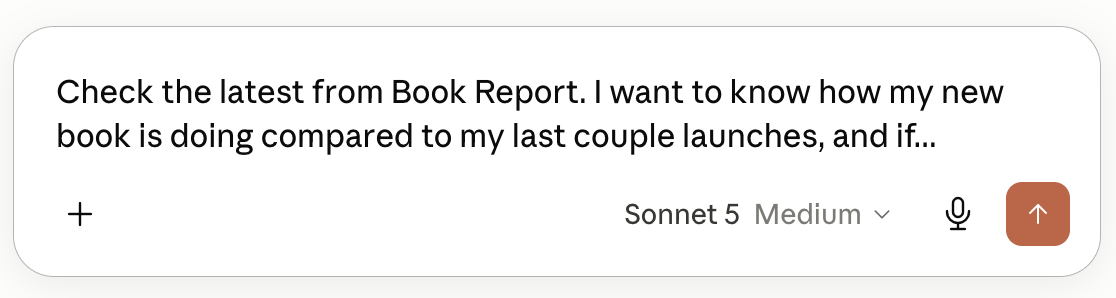
If you already connected Book Report as a custom connector, you can keep using that connection.
Depending on the version of Claude you are using, you may need to enable the Book Report connector for a specific conversation.
Other AI Tools
Book Report is not limited to Claude or ChatGPT. If another AI tool supports custom MCP servers, you can try connecting it with this URL:
https://app.getbookreport.com/api/mcp
At this time, AI tool connections use MCP authorization through OAuth. API keys are separate from AI tool connections and are not needed for Claude, ChatGPT, or other OAuth-based AI tools.
Team Access
If you want your whole team to work with your publishing data in the AI tool you already use, without passing around spreadsheets, sharing passwords, or getting everyone set up in Book Report, email me at liam@getbookreport.com.
Team Access is invite-only right now. Once it is enabled for your account, account owners can generate Team Access Codes for trusted editors or staff. Those codes let teammates connect the AI tool your company uses to the Book Report data the account owner can see.
Send Feedback
Please email me at liam@getbookreport.com with any feedback or questions.