Facebook Ads
Book Report can import your Facebook and Instagram advertising activity and show it alongside your publishing income.
If you are on legacy pricing, your first successful Facebook Ads connection will begin a 90-day free trial. Your legacy subscription keeps the features that existed before February 2025. Facebook Ads is part of the new feature set, so keeping this feature after the trial will require moving to current pricing.
Connecting Facebook Ads
- Open Book Report and go to the Settings tab, then select Connected Accounts.
- Find Facebook Ads and click Connect.
- Follow Facebook's prompts to connect your account.
- Back in Book Report, choose the ad accounts you want to import.
- Once you save your choices, Book Report will begin importing data from those accounts.
Book Report imports the previous 365 days of advertising activity, starting with the most recent 30 days and filling in older history in the background. The most recent 30 days refresh approximately every six hours, including while older history is loading.
Facebook access often lasts about 60 days. When Facebook supplies an expiry date, Book Report shows it in Settings. Connections without an expiry date can still import normally. If Facebook reports that access has expired or been revoked, Book Report pauses imports and shows Reconnect in Settings. Reconnecting preserves your imported history and selected accounts.
Using Facebook Ads in reports
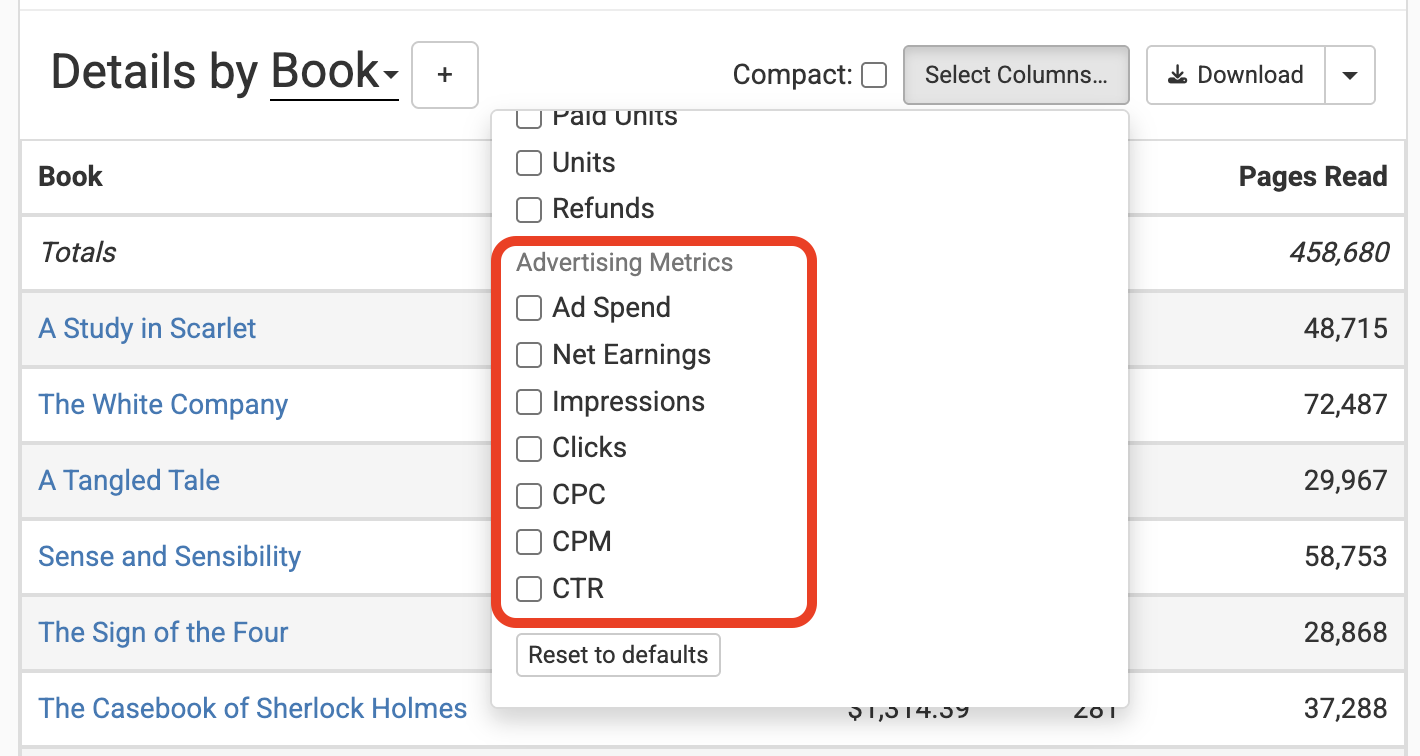
Book Report adds Ad Spend to your default Today and Historical tables when you connect Facebook Ads. You can also add these advertising metrics to reports:
- Ad Spend
- Amazon Ad Spend and Facebook Ad Spend, offered together when both platforms have non-zero spend in the current report window
- Net Earnings
- Impressions
- Clicks
- CPC
- CPM
- CTR
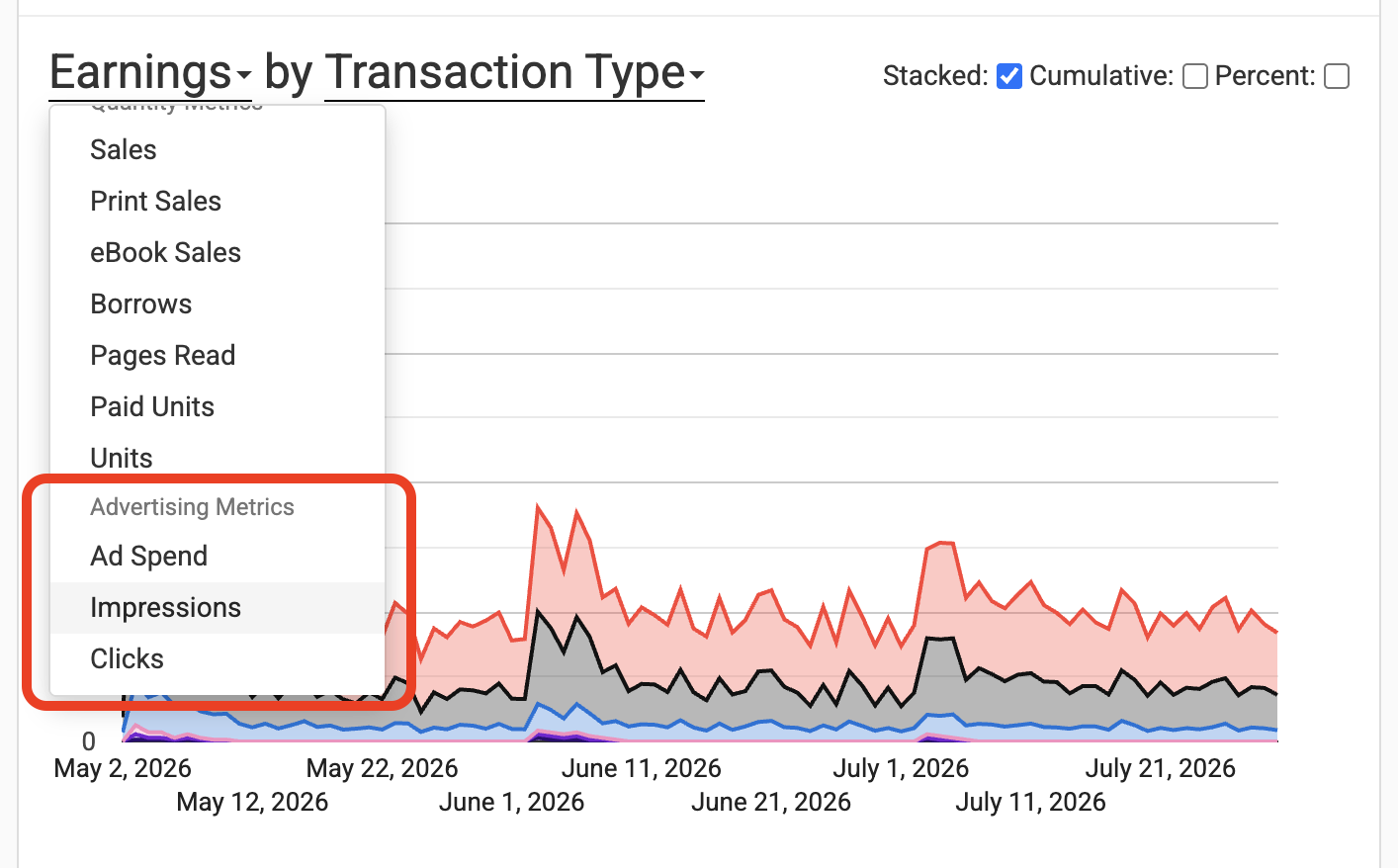
You can add the same advertising metrics as columns in details tables:
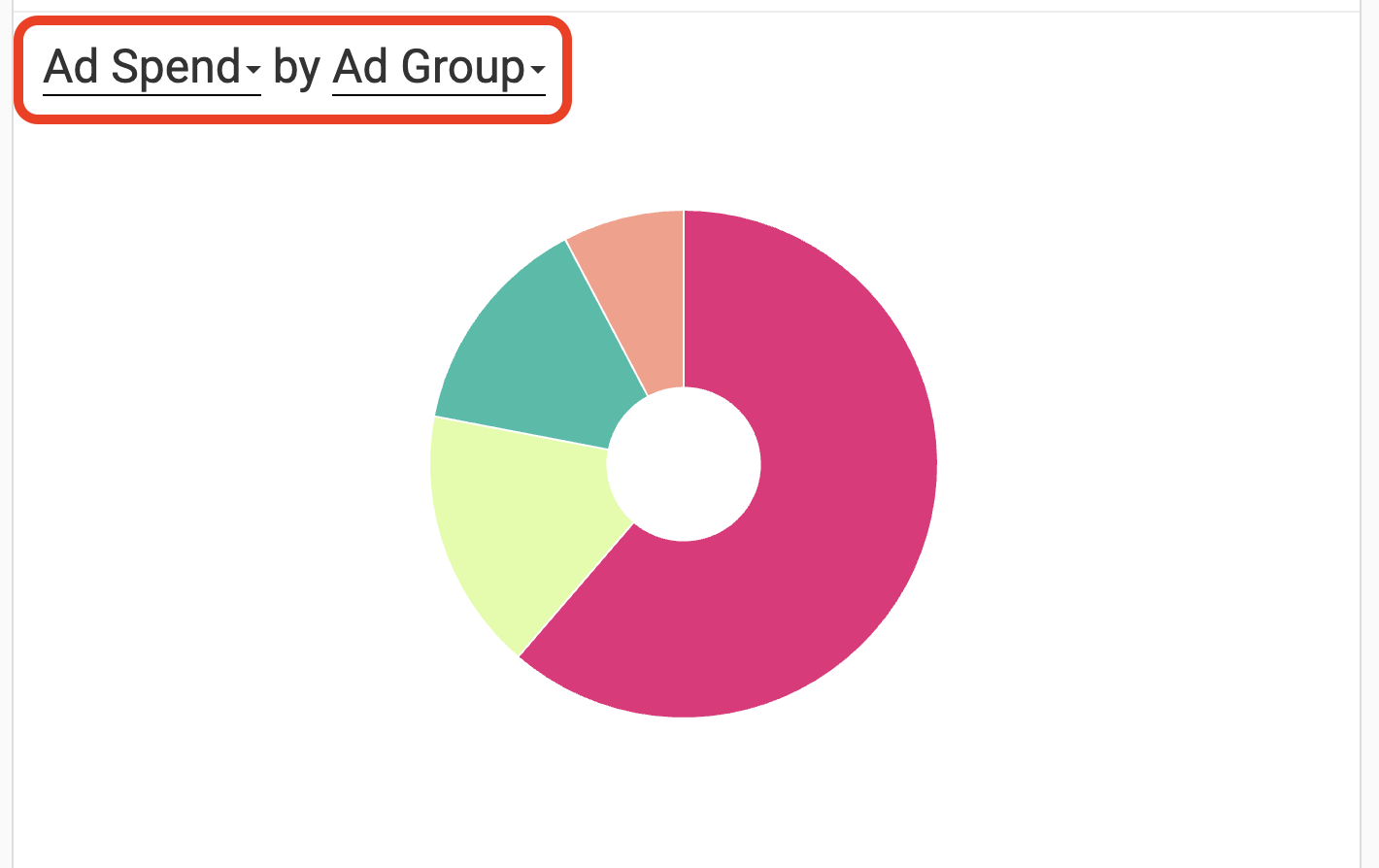
Facebook's campaigns, ad sets, and ad accounts are available in Book Report as Campaign, Ad Group, and Ad Profile. Ad Platform distinguishes Meta activity from advertising imported from Amazon. You can use these attributes in tables, charts, and filters like other Book Report attributes.
For example, you can view Ad Spend grouped by Ad Group:
Matching ads to your catalog
After you've connected your Facebook account, you'll see a new Ads tab, where you can manage how Book Report understands your advertising. Instead of managing ads individually, Book Report’s understanding is based around destinations. Where is an ad sending people? We call that the ad’s destination.
Facebook provides rich data about ad spend, clicks, impressions, but it does not connect those metrics to the books, authors, and series that make up your actual business. That’s what the ads tab is for - establishing links between Facebook data and your Book Report catalog. Once the link is established, Book Report can display very rich data. If we know that a destination points to a certain edition, then we can correctly categorize all of its spend not only to the right book, but the right author, series, format, distributor, and more.
How to use the Ads Tab:
- If your ad points to a book’s page on Amazon, Book Report will match it automatically. You can see the result of that match on the Ads Tab.
- If your ad points to a specific book, but we don't detect it automatically, you can match it by clicking Match to Book….
- Not all ads are for a single specific book. For instance, they may be lead generation for a series or author. You can enable the “Author” and “Series” columns and set them directly - this tells Book Report “All ad spend that points to this destination, categorize it under this author or series”.
- If you run some ads that are not relevant to the business you track with Book Report, you can click “Exclude from Reports” to ignore all metrics from ads pointing at that destination.
Anything not working how it should?
Email me at liam@getbookreport.com with any feedback or bug reports.