Ranks and Ratings
Rank and rating tracking in Book Report lives on the Today tab. This is what it looks like:
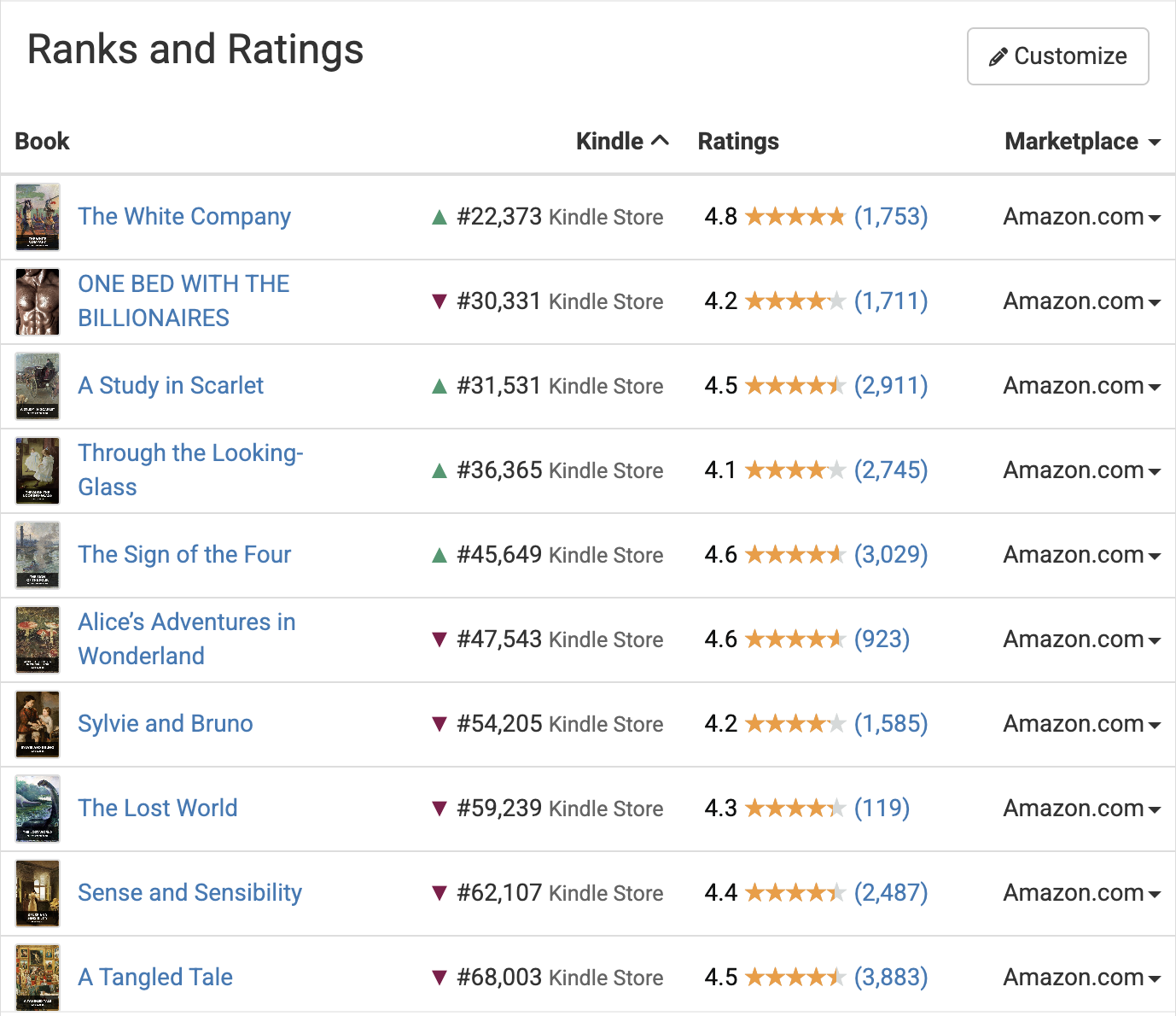
In addition to Amazon Best Sellers Ranks, Book Report can show the current star rating and rating count for each book. This gives you one more way to understand how a book is doing right now, especially during a launch, promotion, or ad push.
Options
For each book, you can click the marketplace to change which marketplace you are seeing the ranks from. You can also click the table header for "Marketplace" to set marketplaces to all books at once. Choosing "Default" will set all books to their home marketplaces, as set on KDP.
You can sort by any of the rank columns by clicking the column header. Clicking the column header again will reverse the sort order. You can also sort the table based on the books - either alphabetically or by publication date.
The rest of the options for the Ranks component will pop up if you click "Customize". Those options look like this:
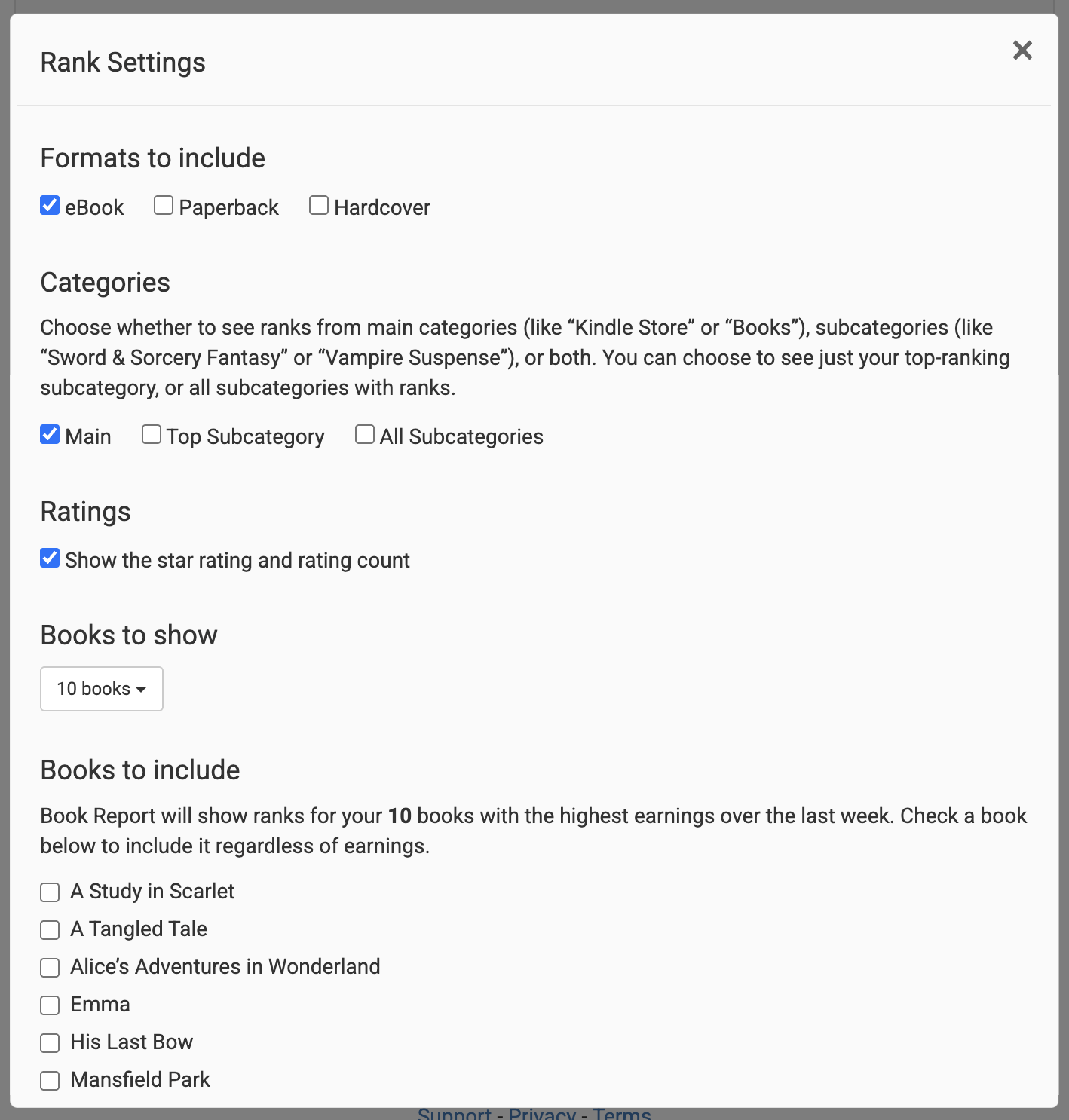
The first set of checkboxes are for format. Every format you check will be included on the Ranks table.
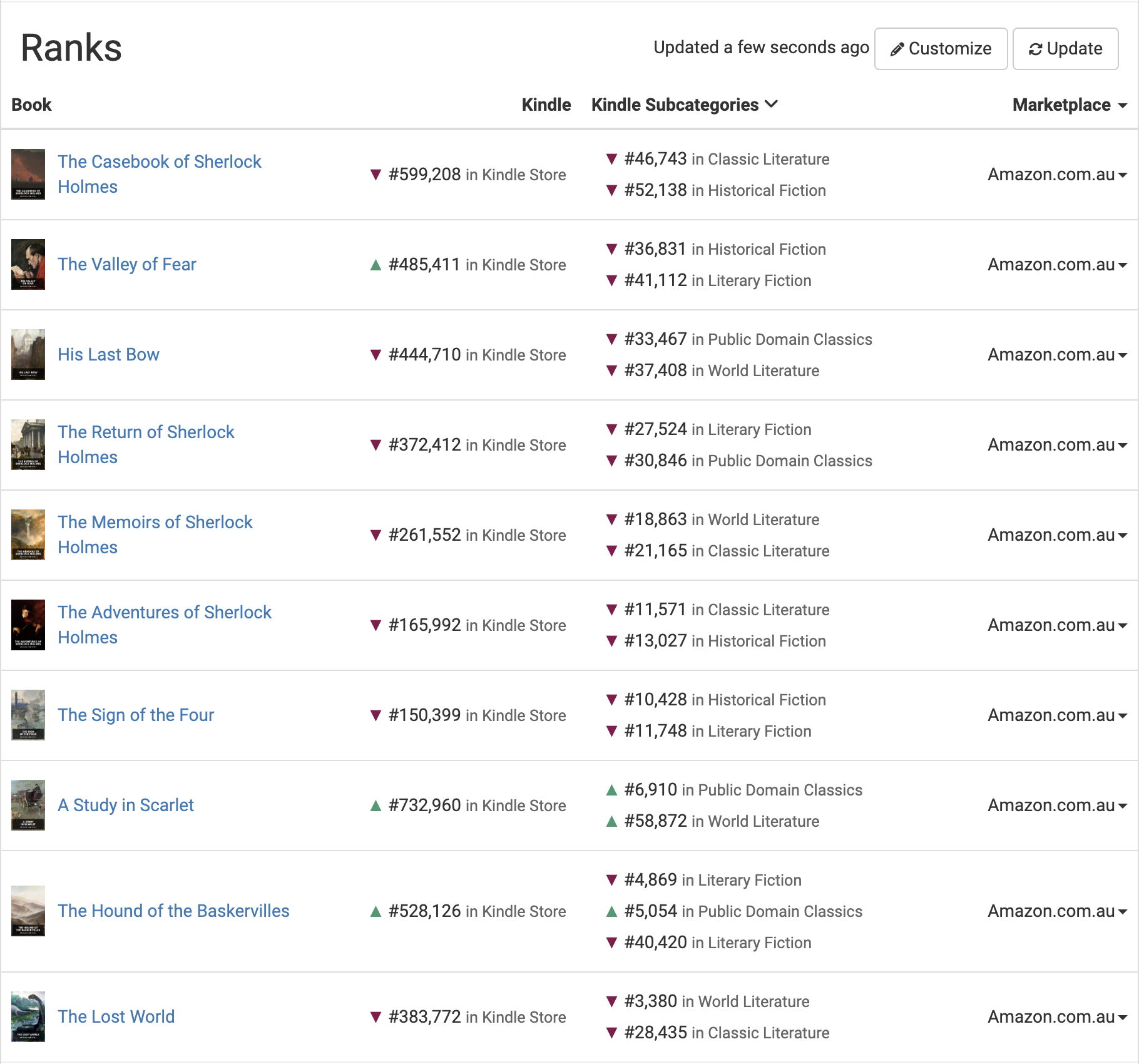
The second set of checkboxes relate to subcategories. You can choose to show or hide the main category, and you can also add only the top subcategory, or all subcategories. This is what it looks like when you enable all subcategories:
The ratings option controls whether the table includes the star rating and rating count from Amazon. If your account is on legacy pricing, Book Report may ask you to start a free feature trial before turning this option on.
There is also an option to choose how many books to include in the table. Be careful! The more books you enable, the more requests your browser will make to Amazon to update information. 10 or 25 should be selected in most cases.
Below those two options is a list of your books. Any book you check here will always be included. If you select fewer books here than the total number you have set it to track, the remaining slots will be filled with your highest-earning books.
Covers Display
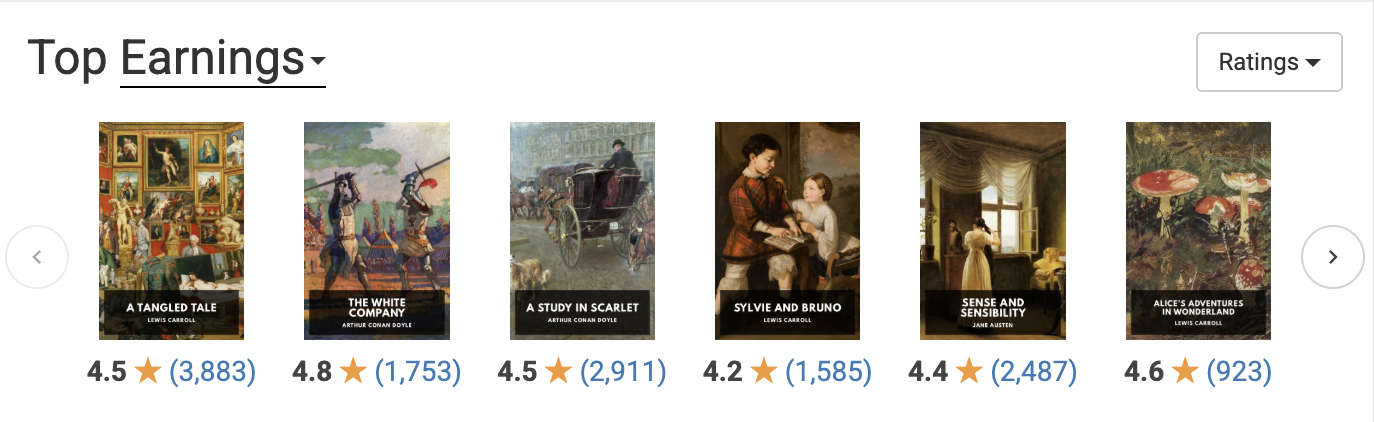
You can also enable ranks or rating data to display within the covers display.
Change Indicators
Next to your rank, you will see one of four symbols. Book Report knows your current rank, and remembers the last rank for each book. If your rank is getting better, you'll see a green arrow pointing up. If your rank is getting worse, you'll see a red arrow pointing down. You can put your mouse over the arrow if you'd like to see the size of the change. If your rank is the same, you'll see a gray circle. And if your rank is #1, you'll see a gold crown.